Windows 8 has Arrived and it will change how you use your computer.
Keyboard shortcuts
First and foremost, if you haven’t historically been a fan of keyboard shortcuts, you
must
use them in Windows 8. By making the interface more touch-friendly,
some features — like the power button — are now much harder to get to
with the mouse. Fortunately, Microsoft has added a few keyboard
shortcuts that mostly ameliorate the pain.
- Alt-F4 — In one of the best changes since Developer Preview, you can now close Metro apps using Alt-F4!
 Windows Key-I
— This pops up the new system tray, which slides in from the right. If
you hit Space or Enter, the Metro control panel opens. If you hit Up
then Enter, you can shut down the computer. (This is the fastest way to
shut down or restart!)
Windows Key-I
— This pops up the new system tray, which slides in from the right. If
you hit Space or Enter, the Metro control panel opens. If you hit Up
then Enter, you can shut down the computer. (This is the fastest way to
shut down or restart!)- Windows Key — If you
have a multi-monitor setup, popping up the Start Screen with the Windows
Key is actually rather painless, and an excellent way to check on your
mail, instant messages, and so on. Tapping Windows Key again hides the
Start Screen and returns you to the previous app (could be the Desktop,
or another Metro app). If you start typing the name of an app from the
Start Screen, Windows will automatically start looking for it (just like
Windows 7)
- Windows Key-F — If specifically want to search through files, rather than apps, use Windows-Key-F. Windows Key-W searches settings.
- Windows Key-C
— One of the most annoying menus to get to in Windows 8, with a
keyboard and mouse anyway, is the Charms menu. Fortunately, you can also
use Windows Key-C, and then the arrow keys.
- Alt-Tab — Alt-Tab, believe it or not, app switches through Desktop and Metro apps. This can take a bit of getting used to.
- Windows-Tab
— This cycles through your Metro apps. I know, you’re probably
devastated: The 3D “Aero Flip” from Windows Vista and 7 is no more!
- Windows Key-Z
— In a Metro app, this opens the App Bar (i.e. the app’s menu).
Unfortunately there aren’t any keyboard shortcuts for selecting items
from the App Bar, but hopefully they’ll be added before retail release.
- Windows-Page Up
— This switches which screen the Metro interface (i.e. the Start Screen
and any Metro apps) appears on. The switch is very rapid (it’s kind of
fun to just hit Windows-Page Up over and over…) Obviously, this is only
useful if you have a multi-monitor setup.
These are a few that will make your life easier that is for sure.
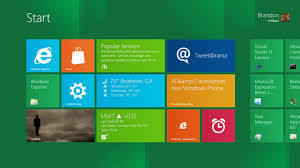
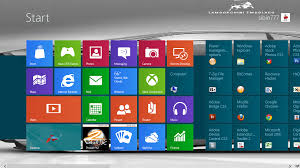
The Metro Interface is scary at first for the computer savvy but it grows on you.
- Remember that Windows 7 is underneath Windows 8.
Almost everything you could do in Windows 7, you can do in Windows 8.
The Superbar (taskbar) is your friend! Pin everything to it! Jump lists
still exist. Superbar thumbnails are still there. The System Tray is
still there. The original Control Panel is still there. The significant
difference is that you must go into the Metro interface to search for
apps (which is a bit odd, in my opinion, but maybe Microsoft will
provide another option before retail release).

-
- Don’t be afraid of the Metro Start Screen.
Embrace it! Remember that you can pin anything to the Start Screen (see
right). Move your Start Screen tiles around. Name your tile groups.
Remember, as soon as you log in, you can start typing the name of the
app you want to open. You’re going to be seeing the Metro screen at
least a few times per day, so try to love it.
- If you really don’t like the Start Screen, however… There is one thing you can do: You can make the Desktop automatically appear after you log in,
instead of the Start Screen. There is unfortunately no known way to
disable the Start Screen in Windows 8 Consumer Preview, however; you’re
always going to see it when searching for apps.
- Press any key on the lock screen. Windows
8 features a new (very touch-oriented) lock screen. You can drag it
upwards with your mouse (painful) or press any key on your keyboard
(much easier).
- Run as administrator. Start
Screen tiles still have right-click context menus, including “Run as
administrator.” You can use the arrow keys to navigate the context menu.
From this same menu you can pin apps to the taskbar/Superbar, too (but
not Metro apps, sadly; hopefully this will be added!)
- You can navigate the Start Screen with the arrow keys. You can also use Page Up/Down to move quickly between the groups. This is much faster than panning with the mouse.


